> For the complete documentation index, see [llms.txt](https://docs.sealsecurity.io/llms.txt). Markdown versions of documentation pages are available by appending `.md` to page URLs; this page is available as [Markdown](https://docs.sealsecurity.io/using-platform/notification-center.md).
# The Notification Center
How Seal alerts you to things you should know about, in the platform, by email, and in Slack.
Seal delivers notifications through three channels:
* **In-app**, the Notification Center inside the Seal UI. Every notification Seal raises lands here.
* **Email**, to an individual user's inbox. Opt-in, per user.
* **Slack**, to one channel for the whole tenant. Opt-in, configured by an admin.
The Notification Center holds everything Seal raises. Email and Slack deliver [the new sealed version notification](#the-new-sealed-version-notification), the event worth acting on as soon as it lands, so it reaches you whether or not you are in the Seal UI at the time.
## The in-app Notification Center
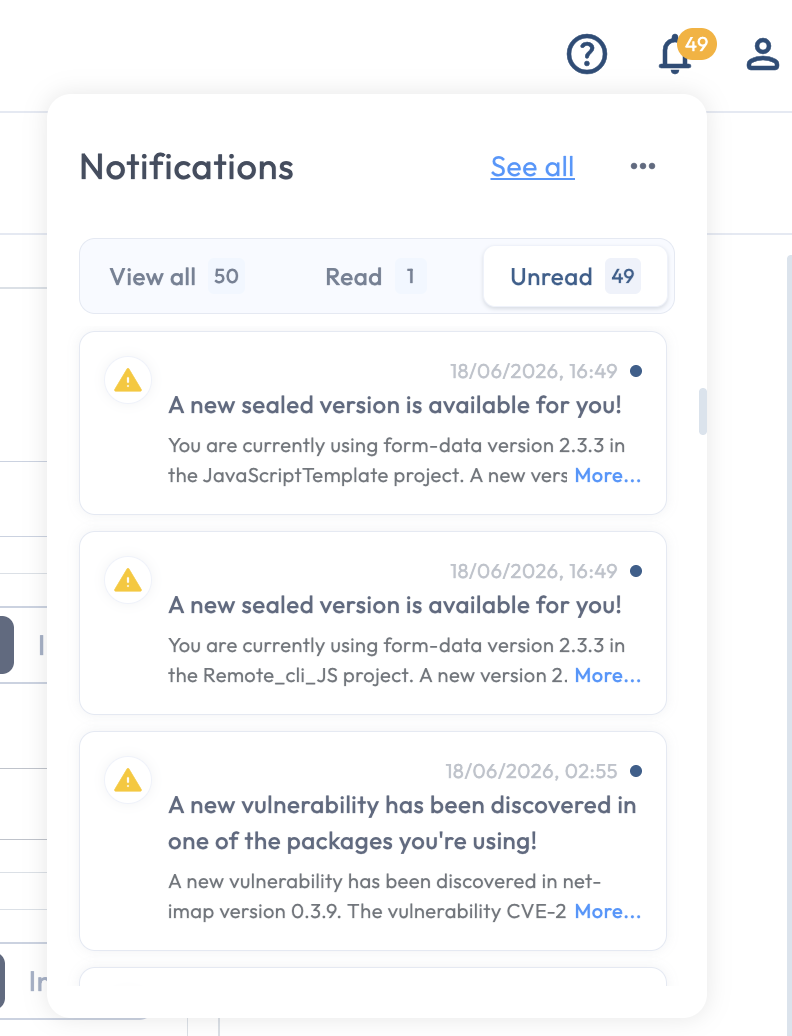
The Notification Center is opened from the bell icon at the top of the Seal UI. Clicking the bell opens a popover with your most recent notifications, newest first. Each entry shows the event and the time it was delivered. Read and unread states are tracked per notification.
The bell icon's popover lists your most recent notifications.
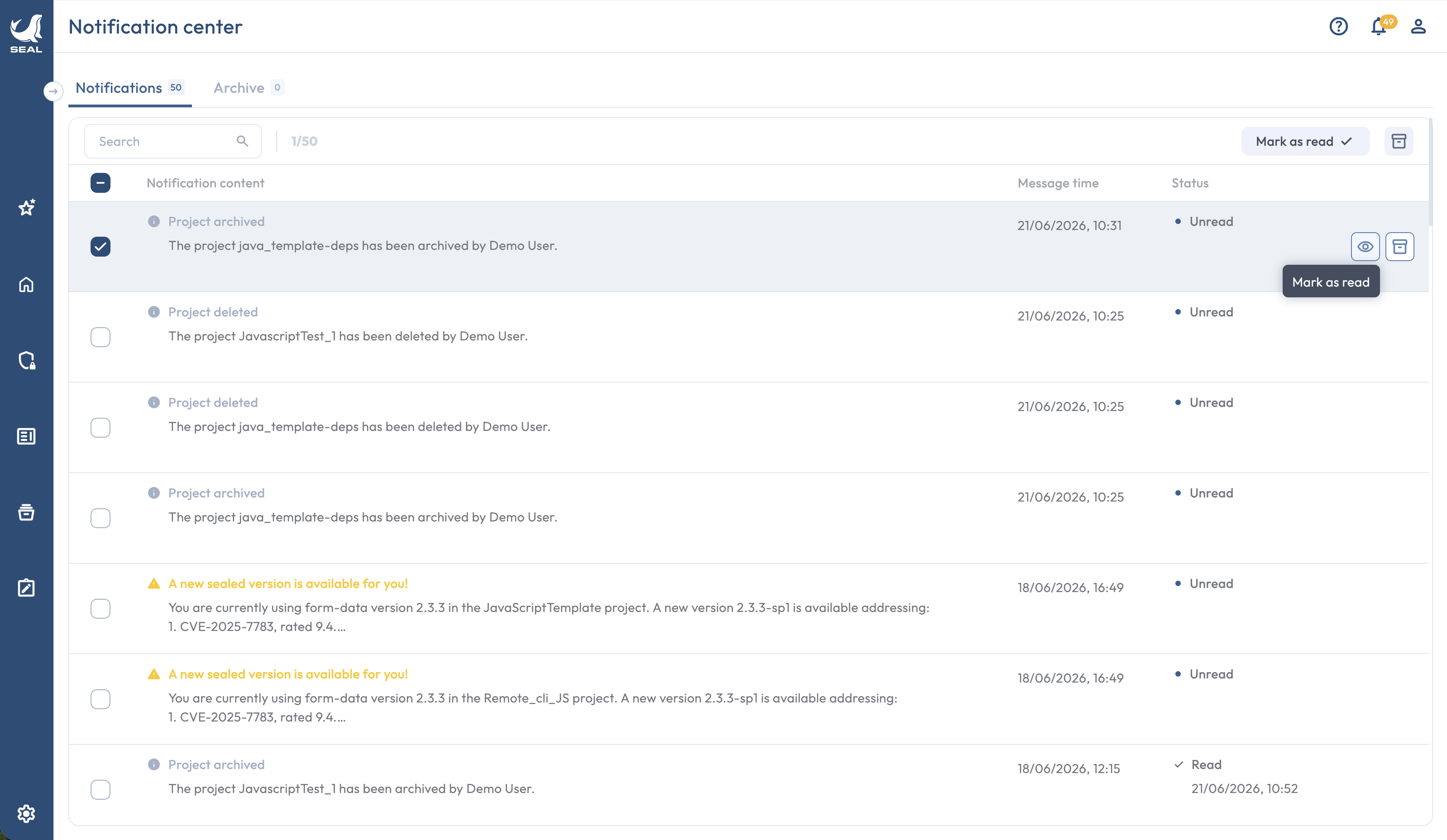
Clicking **See all** opens the full Notifications page, which lists every notification delivered to your user in reverse chronological order. Each row carries its own actions: mark as read or unread, archive, and jump to whatever Seal page the notification refers to (a Vulnerable packages tab row, a Sealing Rule, a project, depending on the event). Archived notifications move into the archive view, where you can unarchive them back into the active list. The archive is where to look when you remember an alert from last week and want to find it again.
The full Notifications page, with per-row actions and the archive view.
Notifications are delivered per user and scoped to the tenant. You see what is relevant to your role and the projects you have access to; other users in the same tenant see their own list.
A broad and growing set of events fires in-app. The ones that ship today:
* A new vulnerability is discovered in a package your tenant uses, and the package is already on a sealed version.
* A new vulnerability is discovered in a package your tenant uses that is not yet sealed.
* A new sealed version is released for a package you are already using.
* A Seal Project's state changes (deleted, archived, restored). Delivered to admins of the tenant.
* A source-control integration event affecting your tenant, for example the Seal GitHub App failing to open a pull request it tried to create.
## The new sealed version notification
Seal notifies you when **a new sealed version is released for a package you are already using, or for a package version your tenant requested a sealed version for.** Seal has fixed vulnerabilities that are still open in the version you are on, so this is the event worth reaching you wherever you are. Email and Slack both deliver it.
The notification names the version your project uses, the new sealed version, and the vulnerabilities the new sealed version fixes that are still open in yours. Seal sends it when the release closes something new for the version you are on, so a notification always means there is something to gain by replacing your version.
### Which version you are notified against
You are notified whether your Seal Projects use the **origin version** of the package or an earlier **sealed version** of it. That includes the first seal of a package: when Seal releases the first sealed version for an origin version, users still on that origin version are notified.
A Seal Project that already uses a sealed version of the package is notified against that sealed version, not also about the origin version it replaced.
### When your tenant requested the sealed version
If your tenant requested a sealed version for a package version, for example with [Generate fix](/discovering/generate-fix.md), you are notified when Seal releases a sealed version for that origin version, even if none of your Seal Projects report using the package. This applies to requests that are still waiting and to requests that are already done. Requested sealed versions that are private to your tenant do not send this notification.
## Email notifications
Email is configured per user under **Settings > Notifications**, on the **Email notifications** switch. Turn it on to start receiving them. Each user controls their own preference, independently of everyone else in the tenant.
## Slack notifications
Seal can post the same new sealed version notification to a Slack channel in your workspace. Unlike email, this is a tenant-wide setting: one channel per tenant, posted to the channel rather than to individual users.
To set it up:
1. Connect Slack under **Settings > Integrations**, if your tenant has not already connected it. Seal uses the same Slack connection for Slack notifications and for the [Seal Engineer](/using-platform/seal-engineer.md). Until Slack is connected, the Slack notifications section shows a prompt to connect it first.
2. Open **Settings > Notifications**, select the **Tenant** tab, and turn on the **Slack notifications** switch.
3. Pick the channel from the **# Channel** list, which shows the channels of your connected workspace and can be searched by name.
4. Invite the Seal Security App to that channel in Slack so it can post there.
Only Admins can turn Slack notifications on or off or change the channel. Turning the switch off clears the channel and Seal stops posting.
## Choosing a channel
The three channels answer different operational needs, and they are not alternatives to each other:
* **In-app** is the read channel for everything that happens inside Seal. The bell icon's unread count is the signal; the popover and the full Notifications page are where you read.
* **Email** is the personal push channel, for a user who wants a new sealed version to reach them outside the Seal UI.
* **Slack** is the shared push channel, for a team that would rather see that event once in a channel they already watch than in each member's inbox.
A user who works in the Seal UI day to day usually relies on the bell icon and leaves email off. A user who spends the day elsewhere usually turns email on, or has their team watch a Slack channel, to be drawn back into the platform when something specific lands.
## Related
* [The Seal UI tour](/using-platform/seal-ui-tour.md): the chapter that orients you to the bell icon and the rest of the top-level navigation.
* [User roles](/getting-started/users-and-sso/user-roles.md): which roles can edit tenant settings.
* [Triggering Generate fix](/discovering/generate-fix.md): the request that also makes you eligible for the new sealed version notification.