> For the complete documentation index, see [llms.txt](https://docs.sealsecurity.io/llms.txt). Markdown versions of documentation pages are available by appending `.md` to page URLs; this page is available as [Markdown](https://docs.sealsecurity.io/getting-started/users-and-sso/inviting-users.md).
# Inviting and managing users
Inviting team members, changing their roles, and revoking access.
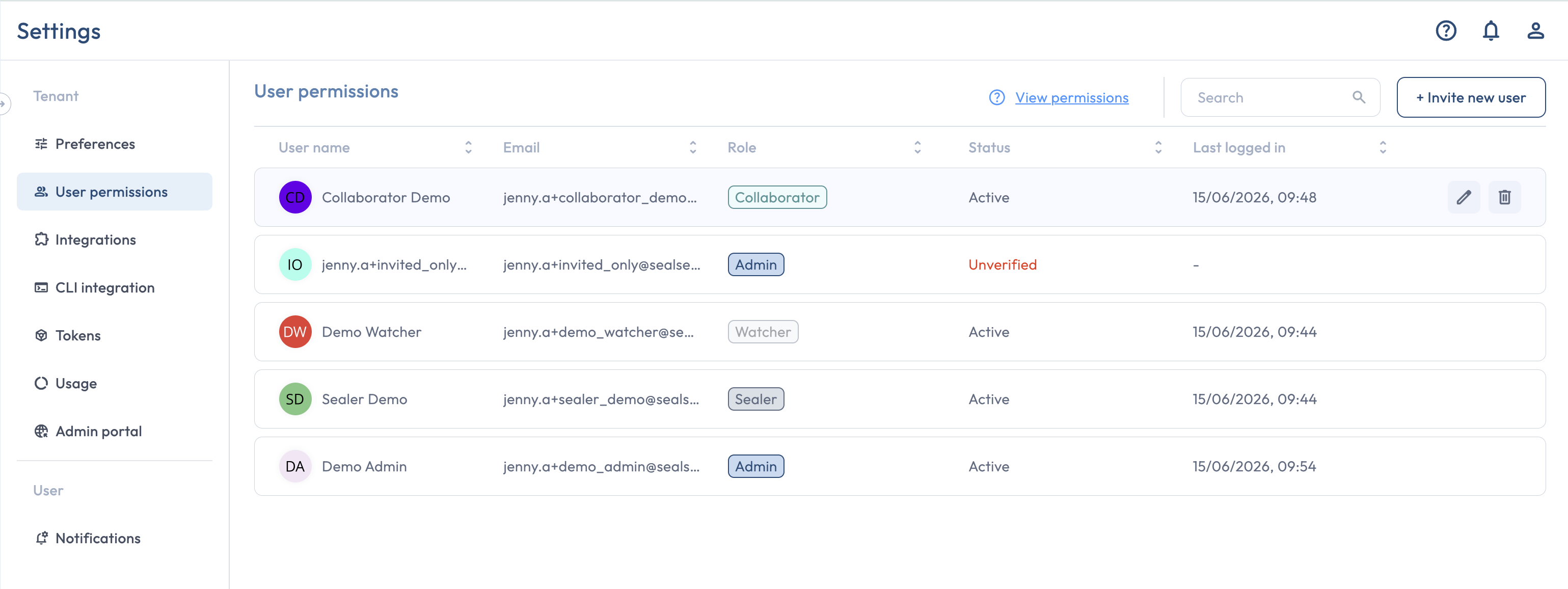
User management lives at **Settings > Roles and Permissions**. Only users with the **Admin** role have access to this page.
The Roles and Permissions page
## Inviting a user
1. Open **Settings > Roles and Permissions**.
2. Click **Invite user**.
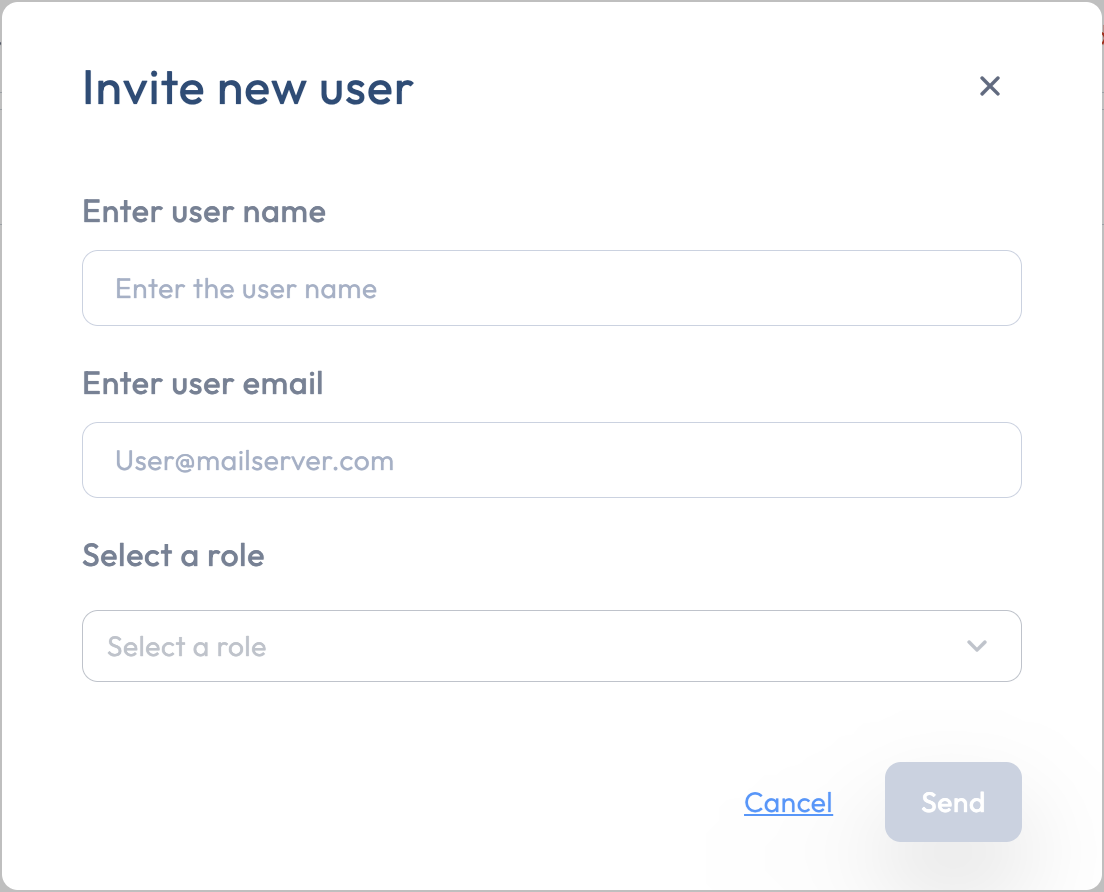
3. Fill in the modal:
* **Name**: the user's display name.
* **Email**: their work email address. Seal sends the invite email here.
* **Role**: pick one of [Admin, Sealer, Collaborator, Watcher](/getting-started/users-and-sso/user-roles.md).
4. Click **Send**.
The Invite user modal
The invited user receives an email with an activation link valid for **seven days**. See [Sign up and sign in](/getting-started/sign-up-and-sign-in.md) for the user-side flow.
## Changing a user's role
In the **Settings > Roles and Permissions** table, click the edit icon on the user's row, pick a new role from the dropdown, and confirm. The change takes effect immediately.
## Revoking access
To remove a user from your tenant, click the delete icon on their row and confirm with **Delete** in the dialog. The user can no longer sign in to your tenant.
## Resending an invite
Seal does not have a built-in resend control. If a user's invite expires before they activate it, send them a fresh invite by repeating the **Invite user** flow with the same email address.
## Transferring the Admin role
There is no separate transfer-ownership flow. To move administration to a new user, promote them to **Admin** first, then remove the previous admin or change their role.
## Related
* [User roles](/getting-started/users-and-sso/user-roles.md): what each role can do.
* [SSO and SAML](/getting-started/users-and-sso/sso-and-saml.md): when SAML is configured for your tenant, new users can be auto-provisioned without an explicit invite.