> For the complete documentation index, see [llms.txt](https://docs.sealsecurity.io/llms.txt). Markdown versions of documentation pages are available by appending `.md` to page URLs; this page is available as [Markdown](https://docs.sealsecurity.io/getting-started/tokens/generating-tokens.md).
# Generating and revoking tokens
Creating a token, copying it during the one-time reveal, and revoking it.
Token generation and revocation live at **Settings > Tokens**. Only Admin-role users have access.
## Generating a token
1. Open **Settings > Tokens**.
2. Click **Create token**.
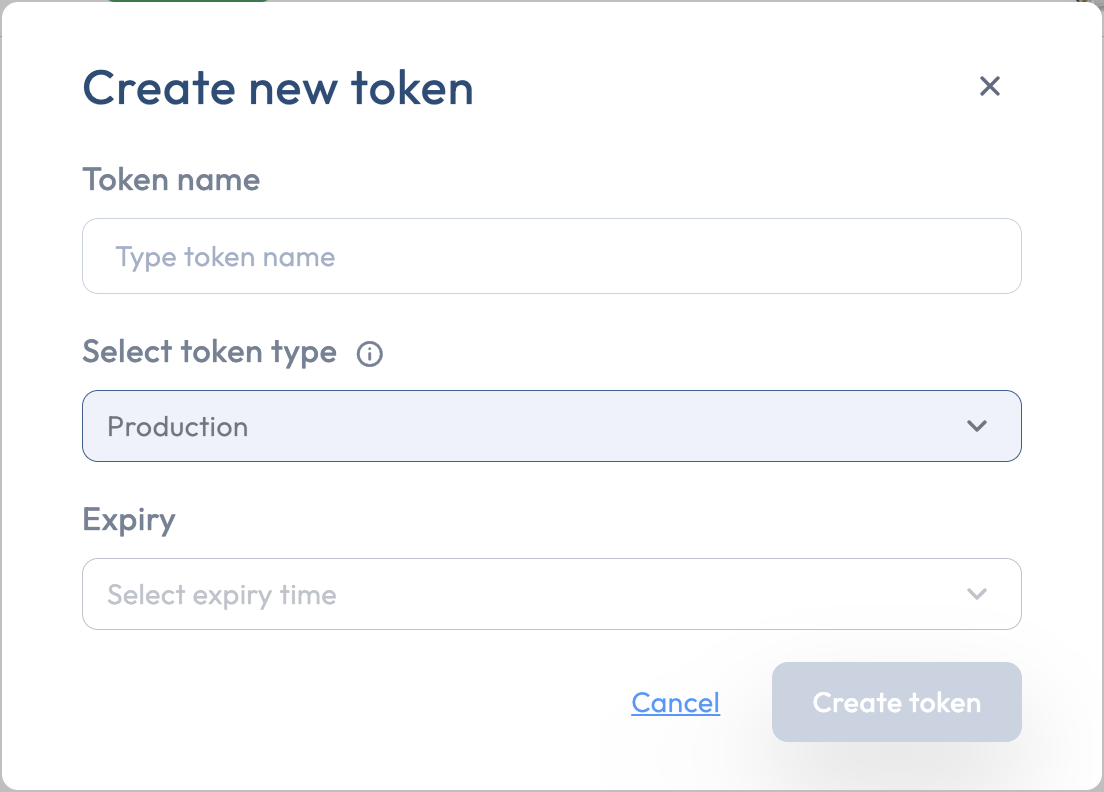
3. Fill in the form:
* **Token name**: a name that helps you identify what the token is for. You do not need a separate token per project; most tenants are fine with one production token and one development token, named accordingly.
* **Token type**: [Production or Development](/getting-started/tokens/token-types.md).
* **Expiry**: **Never** or **After one year**.
4. Click **Create token**.
The Create token form
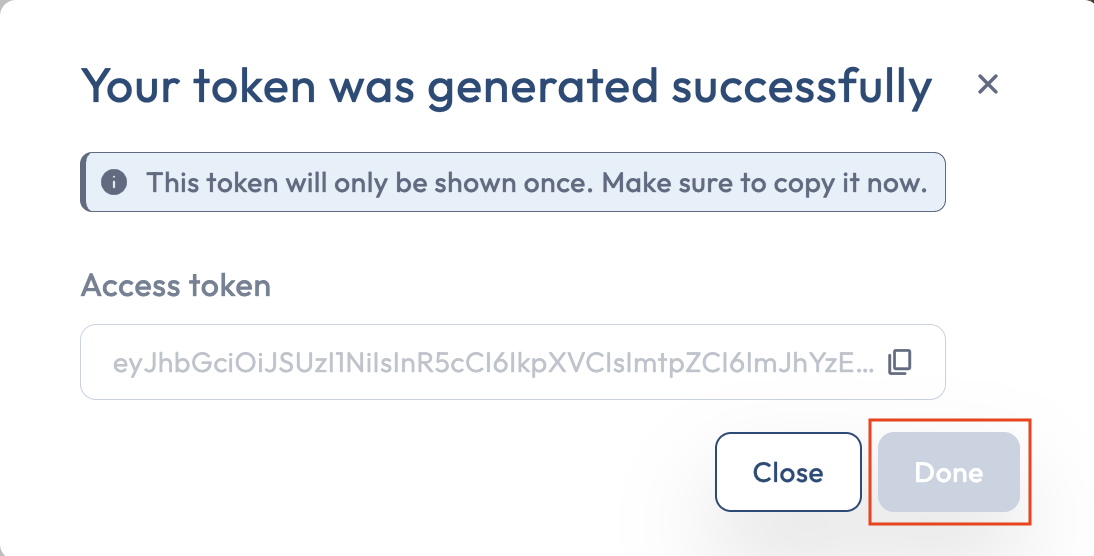
The next step shows the token value with a copy-to-clipboard button. **The token is shown only once.** Copy it before you close the modal; the **Done** button is disabled until you copy. If you close the modal without copying, the token is unrecoverable. In that case, generate a new one and revoke the lost one.
The token's one-time reveal
## Revoking a token
1. Open **Settings > Tokens**.
2. Find the token in the table and open its row menu.
3. Click the delete icon. A confirmation dialog appears showing the token's name and warning that the action is irreversible.
4. Click **Delete** to confirm.
The token is invalidated immediately. Any client still using it will fail authentication on its next request.
## The Tokens table
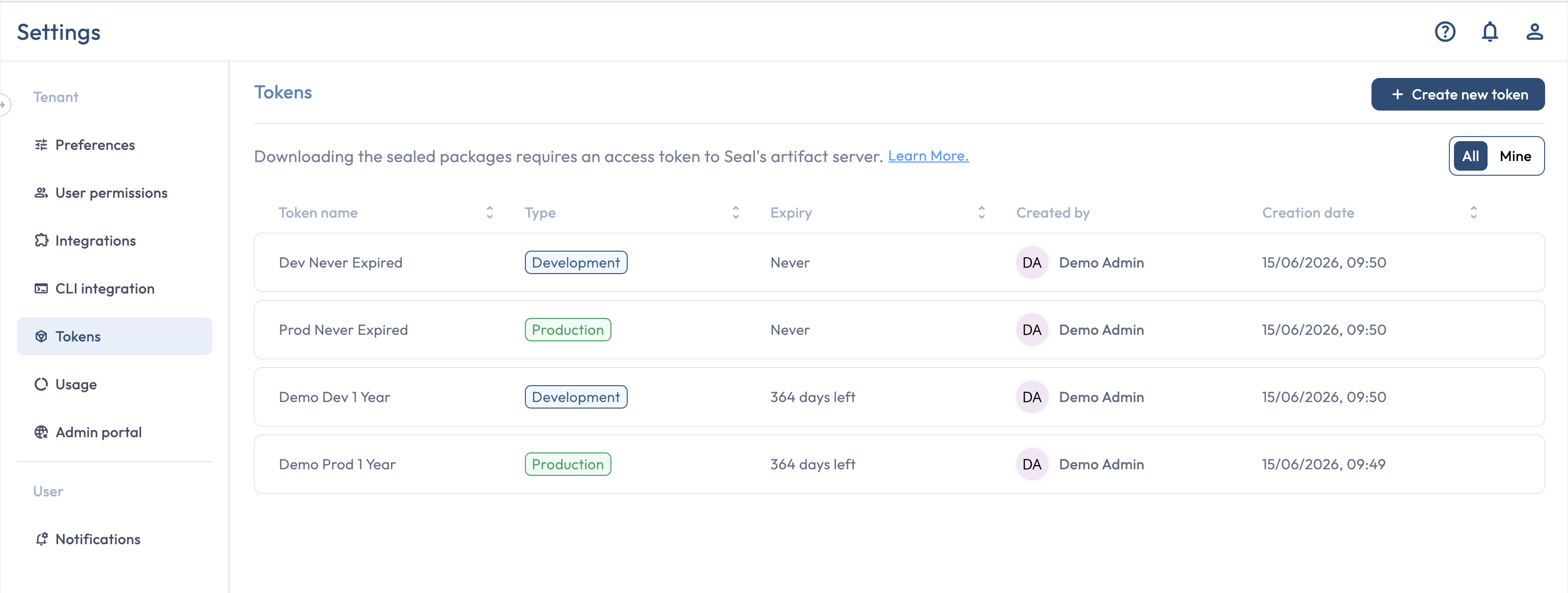
The **Settings > Tokens** page lists all tokens for your tenant in a single table:
The Tokens table
| Column | Description |
| ----------------- | ---------------------------------------------------------------- |
| **Name** | The token's name. |
| **Type** | Production or Development. |
| **Expiry** | Never, or the number of days remaining before the token expires. |
| **Created by** | The user who generated the token. |
| **Creation date** | When the token was created. |
There is no built-in rotation or auto-renewal: tokens with **Never** expiry remain valid until manually revoked, and tokens with **After one year** expiry are auto-invalidated at the one-year mark.
## Related
* [Token types](/getting-started/tokens/token-types.md): when to use each type.
* [Token security best practices](/getting-started/tokens/best-practices.md): scope, rotation, and storage.