> For the complete documentation index, see [llms.txt](https://docs.sealsecurity.io/llms.txt). Markdown versions of documentation pages are available by appending `.md` to page URLs; this page is available as [Markdown](https://docs.sealsecurity.io/legacy-documentation/web-interface/slack.md).
# Slack
The Slack integration brings the **Seal Engineer** AI agent into your team's Slack workspace. Connect Slack once and your engineers can chat with the agent about vulnerabilities, sealed versions, and remediation without leaving the channel they are already in.
[**Add Seal Security to Slack →**](https://app.sealsecurity.io/settings/integrations)
> Read the [Seal Security privacy policy](https://www.seal.security/privacy-policy) before installing.
{% hint style="warning" %}
**AI-generated content.** Seal Engineer is powered by a large language model. Its responses may be inaccurate, incomplete, or out of date, and should be reviewed before you rely on them. Always verify security-critical information (sealed versions, CVE status, remediation steps) against the Seal web interface or other authoritative sources before acting on it.
{% endhint %}
## What it does
* **Chat with Seal Engineer in any channel**: `@`-mention the **Seal Security App** in a channel it is invited to. The agent replies in thread, with full repository and dependency context.
* **DM the agent one-on-one**: open a direct message with the **Seal Security App** and send the agent a question. The agent replies in the same DM thread.
* **Approve agent tool calls inline**: when the agent wants to take an action on your behalf (open a PR with the sealed version, run a scan, query a third-party tool), it posts an **Approve / Deny** message in the thread. One click confirms or rejects the action.
* **Welcome message on bot join**: when the bot is added to a channel it posts a short welcome explaining how to invoke it.
* **Per-thread conversation memory**: each Slack thread (channel or DM) maps to its own Seal Engineer session, so the agent keeps context within the thread.
## Install
You will need:
1. A Seal Security account. If you do not have one, sign up at [sealsecurity.io](https://app.sealsecurity.io) or ask your Seal admin for an invite.
2. A Slack workspace where you have permission to install apps. If your workspace requires admin approval, your Slack admin will be prompted at the consent step.
### Steps
1. Sign in to Seal at [app.sealsecurity.io](https://app.sealsecurity.io).
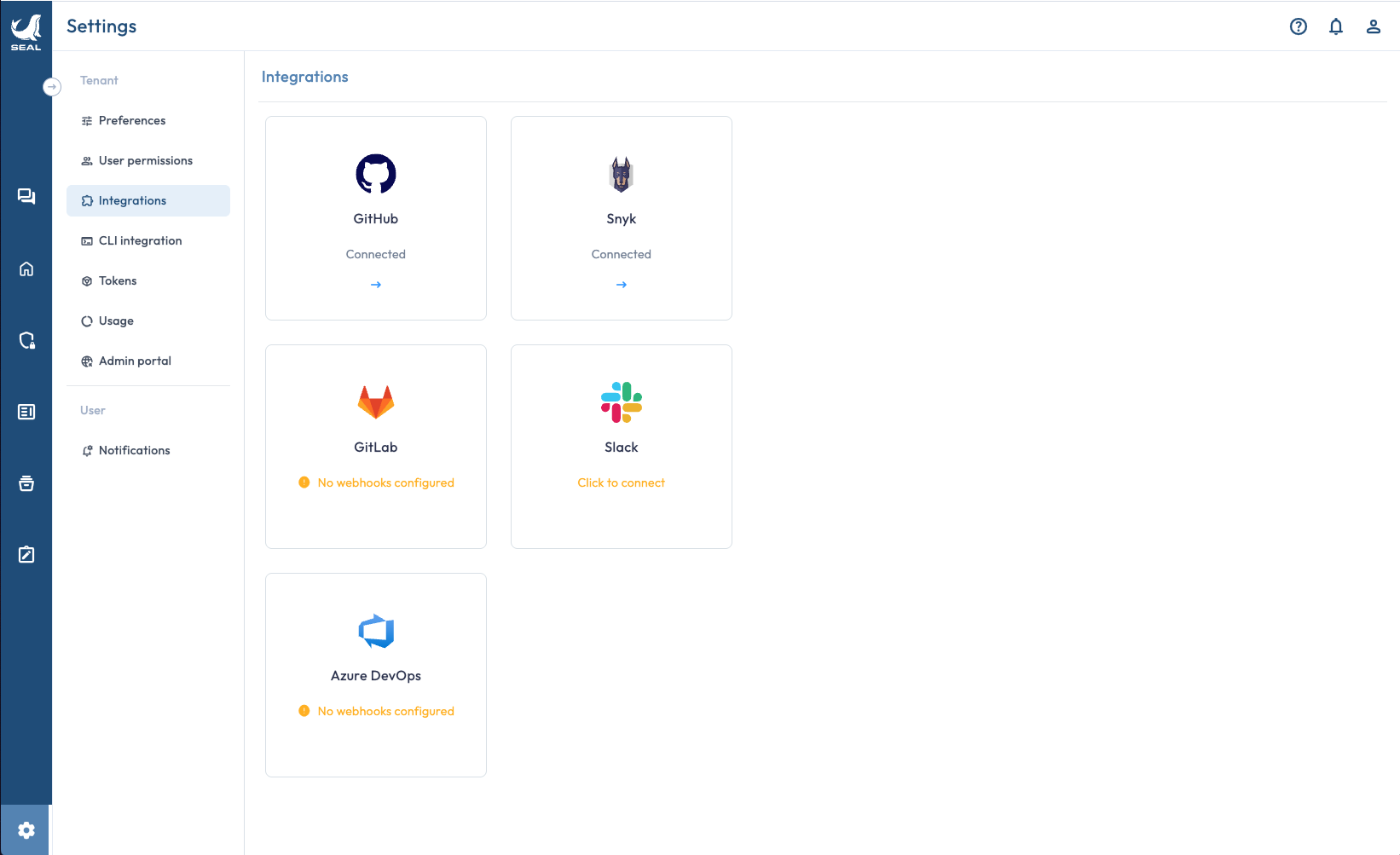
2. Open **Settings → Integrations**, or start a new Seal Engineer conversation and click **Connect to Slack** on the welcome screen.
3. On the **Slack** card, click **Connect**.
Settings → Integrations → click the Slack card.
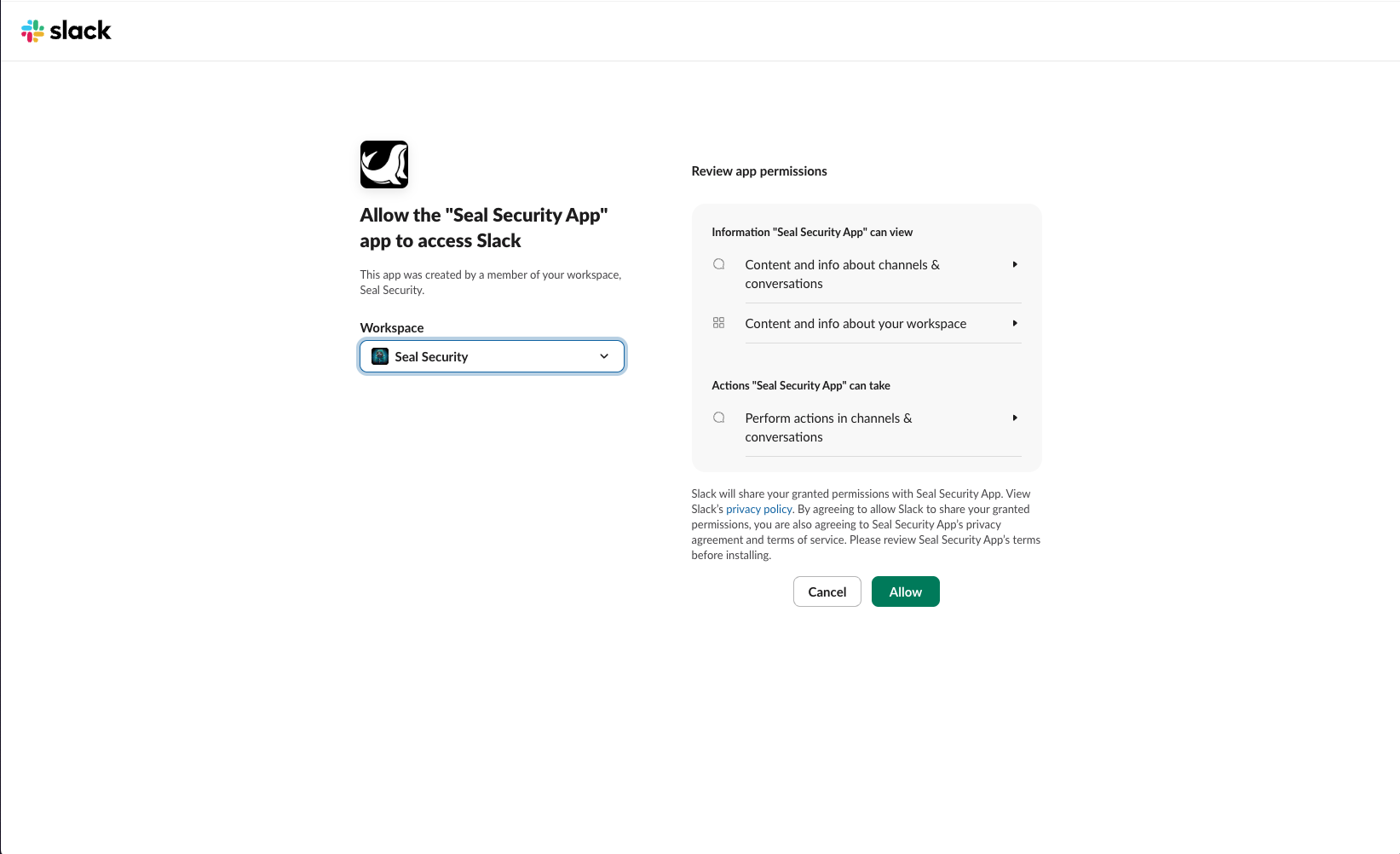
4. Slack's OAuth consent screen opens. Pick the workspace to connect and click **Allow**.
Review the requested permissions and click Allow.
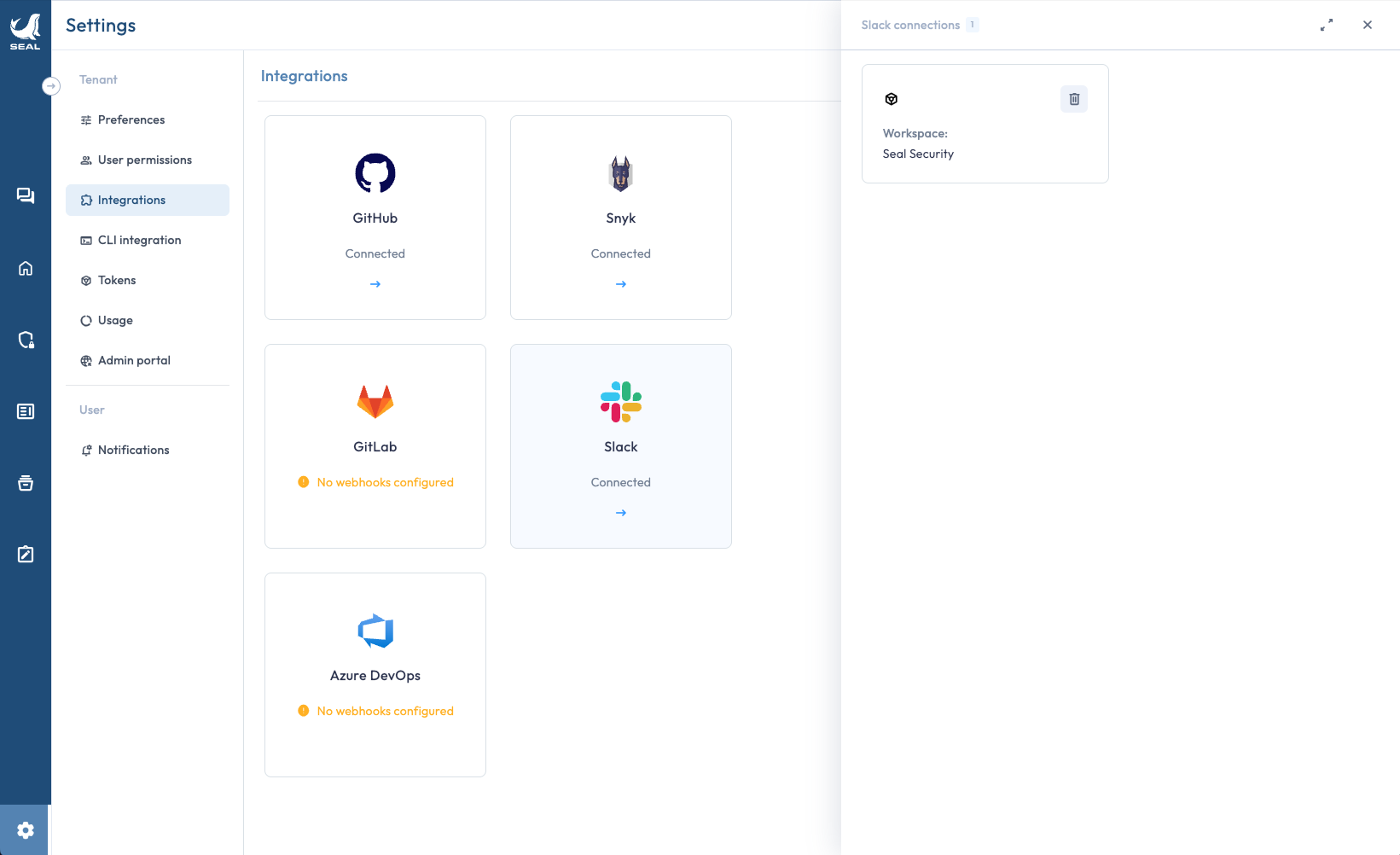
5. Slack returns you to Seal. The integration card now shows **Connected**, and the side drawer lists the connected workspace.
Slack card shows Connected; the drawer lists each connected workspace and lets you disconnect.
6. In Slack, invite the **Seal Security App** bot to any channel where you want to chat with the agent: `/invite @Seal Security App`.
That's it. `@`-mention the bot in the channel and the agent will reply.
## What gets installed
When you click **Allow**, Slack grants Seal a workspace-scoped bot token with the following permissions. Seal does **not** request `channels:join`, `files:read`, or any admin scope.
| Scope | Why Seal needs it |
| ----------------------- | -------------------------------------------------------------------------------------------------------------------------------------------------------------------------------- |
| `app_mentions:read` | Detect when users `@`-mention the Seal Security App in a channel so the agent can respond to vulnerability and security questions in-thread. |
| `channels:history` | Read messages in public channels the app is invited to so the agent can process user prompts directed at the bot and follow up in the same thread. |
| `channels:read` | Look up basic public channel info (id, name) to route the agent's responses back to the correct channel and thread, and to detect when the bot is added to a channel. |
| `chat:write` | Post the agent's responses, status placeholders ("Working on it…"), and tool-approval cards back into the channel as the Seal Security App bot. |
| `groups:history` | Read messages in private channels the app is invited to so the agent can respond to security questions raised by teams operating in private channels. |
| `groups:read` | Look up basic private channel info (id, name) to route responses correctly when the bot is invited to a private channel. |
| `im:history` | Read messages users send to the Seal Security App in a direct message so the agent can answer vulnerability and security questions one-on-one. |
| `im:read` | Look up basic DM conversation info (channel id) so the agent can reliably route its replies back into the same direct-message thread with the user. |
| `im:write` | Open a direct-message conversation with a user so the app can proactively deliver vulnerability notifications, agent-flow results, and follow-up prompts to that user privately. |
| `metadata.message:read` | Read Slack message metadata that the app itself attaches to its messages so it can correlate replies back to the originating agent-flow run. |
| `mpim:read` | Look up basic group DM info so the bot can identify the conversation when invited to a multi-person DM (3+ participants). |
| `users:read` | Resolve the Slack user who `@`-mentioned the bot or messaged it in DM to map them to a Seal tenant user, apply per-user permissions, and personalize replies. |
| `users:read.email` | Match the Slack user's email to the Seal Security user account in our system, since email is the canonical identity used for tenant access control. |
## How the bot uses your channels
* The bot processes the following Slack events:
* `@`-mentions of the **Seal Security App** in a channel (`app_mention`).
* Direct messages to the **Seal Security App** (`message.im`) and group DMs the app is part of (`message.mpim`).
* The welcome event when the bot is added to a channel (`member_joined_channel`).
* All other Slack events are ignored: regular channel messages the bot is not addressed in, and channel-history reads outside threads the bot participates in. The webhook handler explicitly drops them.
* The bot will not read or respond in any channel it has not been invited to. To stop the bot from seeing a channel, run `/kick @Seal Security App` in that channel. To stop a DM, close the conversation in Slack or disconnect the integration in Seal.
## Disconnect
To disconnect:
1. Open **Settings → Integrations** in Seal.
2. On the **Slack** card, click **Disconnect**.
This revokes the bot token with Slack and marks the integration as disconnected in Seal. The bot stops responding immediately.
Deletion of residual workspace metadata is described in the [Privacy](#privacy) section below.
## Privacy
See the [Seal Security privacy policy](https://www.seal.security/privacy-policy) (Slack section) for details on what data Seal receives from Slack, how it is stored, and how to request its deletion.
To delete data Seal holds about your Slack workspace, disconnect the integration (this revokes the bot token with Slack immediately), then email to request deletion of residual metadata. Deletion completes within 30 days.
## Troubleshooting
**"Slack workspace is already connected to another tenant"** A workspace can only be connected to one Seal tenant at a time. Disconnect the existing tenant first, or contact support to migrate.
**The bot doesn't reply when I @-mention it** Confirm the **Seal Security App** bot is a member of the channel. Run `/invite @Seal Security App` and try again. The bot will not respond in channels it has not been invited to.
## Support
* Email:
* Contact form: [seal.security/company/contact](https://www.seal.security/company/contact)
Support requests are answered within two business days.