> For the complete documentation index, see [llms.txt](https://docs.sealsecurity.io/llms.txt). Markdown versions of documentation pages are available by appending `.md` to page URLs; this page is available as [Markdown](https://docs.sealsecurity.io/discovering/connecting-source-control/managing-connections.md).
# Managing source control connections
View existing source-control installations, disconnect, or replace credentials.
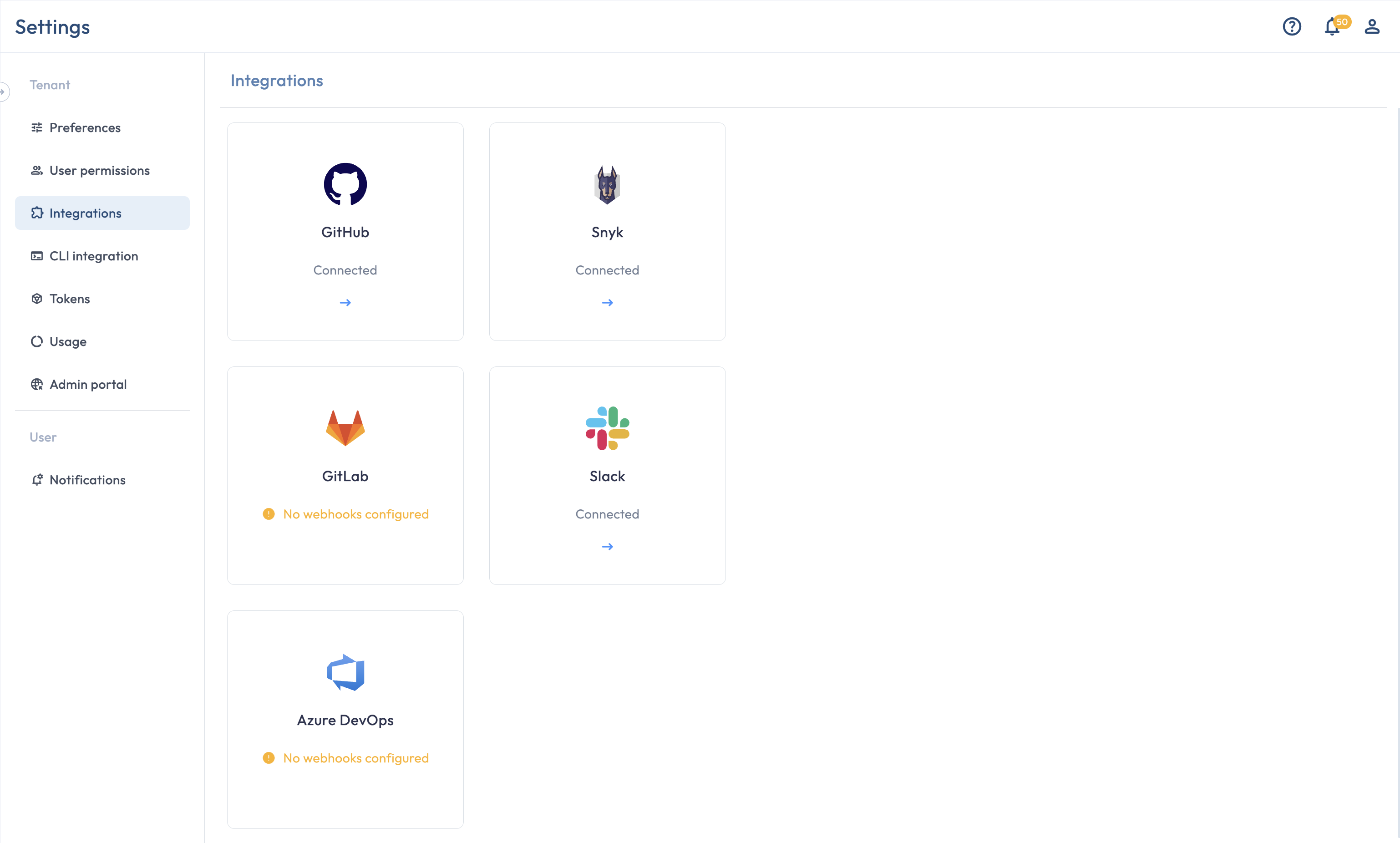
Existing source-control connections live at **Settings > Integrations**. The page shows one card per integration: GitHub, GitLab, Azure DevOps, and Snyk. Clicking a card opens a drawer listing the installations the tenant has set up for that integration.
The Integrations page
## Viewing an installation
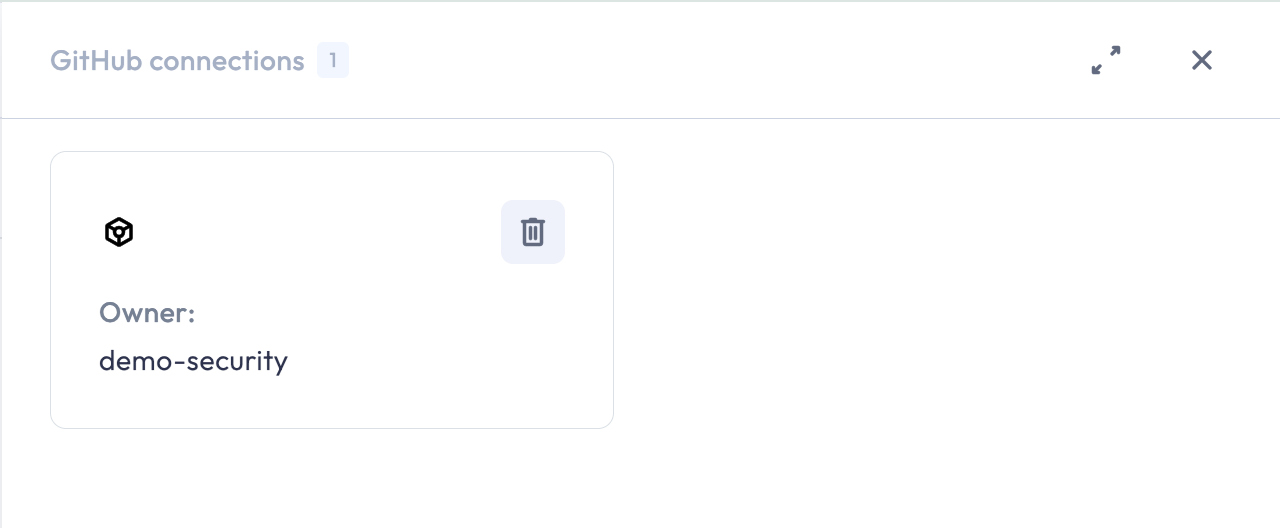
Click the card for the integration you want to look at. A drawer opens listing each installation: the GitHub organization, GitLab instance, or Azure DevOps organization the tenant is connected to. Each row shows the owner name (which is copyable) and a delete button.
The Integrations drawer for GitHub
## Disconnecting
To remove an installation, click the delete icon on its row in the drawer and confirm.
What disconnecting does:
* Stops further discovery for the Seal Projects that were using this connection. They remain in source code mode (per the [one-way mode rule](/getting-started/creating-a-seal-project.md#mode-changes)) but stop receiving fresh signal.
* Stops the Seal GitHub App from opening new automatic PRs for the affected Seal Projects (GitHub only).
What disconnecting does not do:
* Delete the imported Seal Projects. They remain on the Projects page until you archive or delete them.
* Remove the Seal GitHub App from your GitHub organization. If you want to fully uninstall the app on the GitHub side, do that from your GitHub organization settings as well.
## Re-authenticating
Seal does not expose an in-place re-authentication control. To replace credentials (a rotated GitLab or Azure DevOps PAT, or a re-installation of the Seal GitHub App), delete the existing installation from the drawer and add it again through the **Import projects** flow on the Projects page. Each Seal Project's connection is tracked by the manifest URL, so the existing projects re-attach automatically when the new installation covers the same repositories.
## Related
* [Connecting GitHub](/discovering/connecting-source-control/github.md), [Connecting GitLab](/discovering/connecting-source-control/gitlab.md), [Connecting Azure DevOps](/discovering/connecting-source-control/azure-devops.md): the original install flows.
* [Source code mode](/discovering/package-discovery-mode/source-code.md): the discovery mode the connections drive, and what happens to it when the connection stops producing signal.